Recorded lectures are central to modern coursework, but they usually sit behind a login and a streaming player. If you have ever tried to revise on a train with patchy signal, you already know the frustration. This guide explains how to download videos from Canvas and Panopto for personal study, and how to turn those recordings into notes you can actually search.
Why students need offline access to lecture videos
Reliable internet is never guaranteed. Commuters lose signal in tunnels, students travelling home across time zones can't always stream a 9 a.m. recording at a sensible hour, and exam week often means revisiting dozens of hours of video at once. International students in particular benefit from offline lecture videos they can replay without burning through mobile data or fighting a slow campus connection. A local copy means you study on your own terms.
Can you download videos from Canvas?
It depends. Whether you can download Canvas videos comes down to your university's configuration, the instructor's settings, and the underlying video platform. Some courses enable a built-in download option; others embed third-party players that restrict saving. The first step is always to check what your institution officially permits.
How to download videos from Canvas
Start with the official route. Many Canvas media players show a download icon or a "…" menu with a save option — if it's there, use it. When no official button exists but you are authorised to keep a copy, browser-based study tools can capture the video stream where permitted. For a step-by-step walkthrough, see this guide on how to download videos from Canvas, which covers both MP4 and HLS streaming formats.
How to download Panopto video
Panopto recordings are frequently embedded inside Canvas rather than hosted directly, so they often require a separate student login. Because of this extra layer, the steps to download Panopto videos differ slightly from saving a standard Canvas file. A dedicated Panopto downloader detects the embedded stream once you are signed in, letting you save the lecture within the same workflow you use for everything else.
Using a Canvas video downloader for study workflow
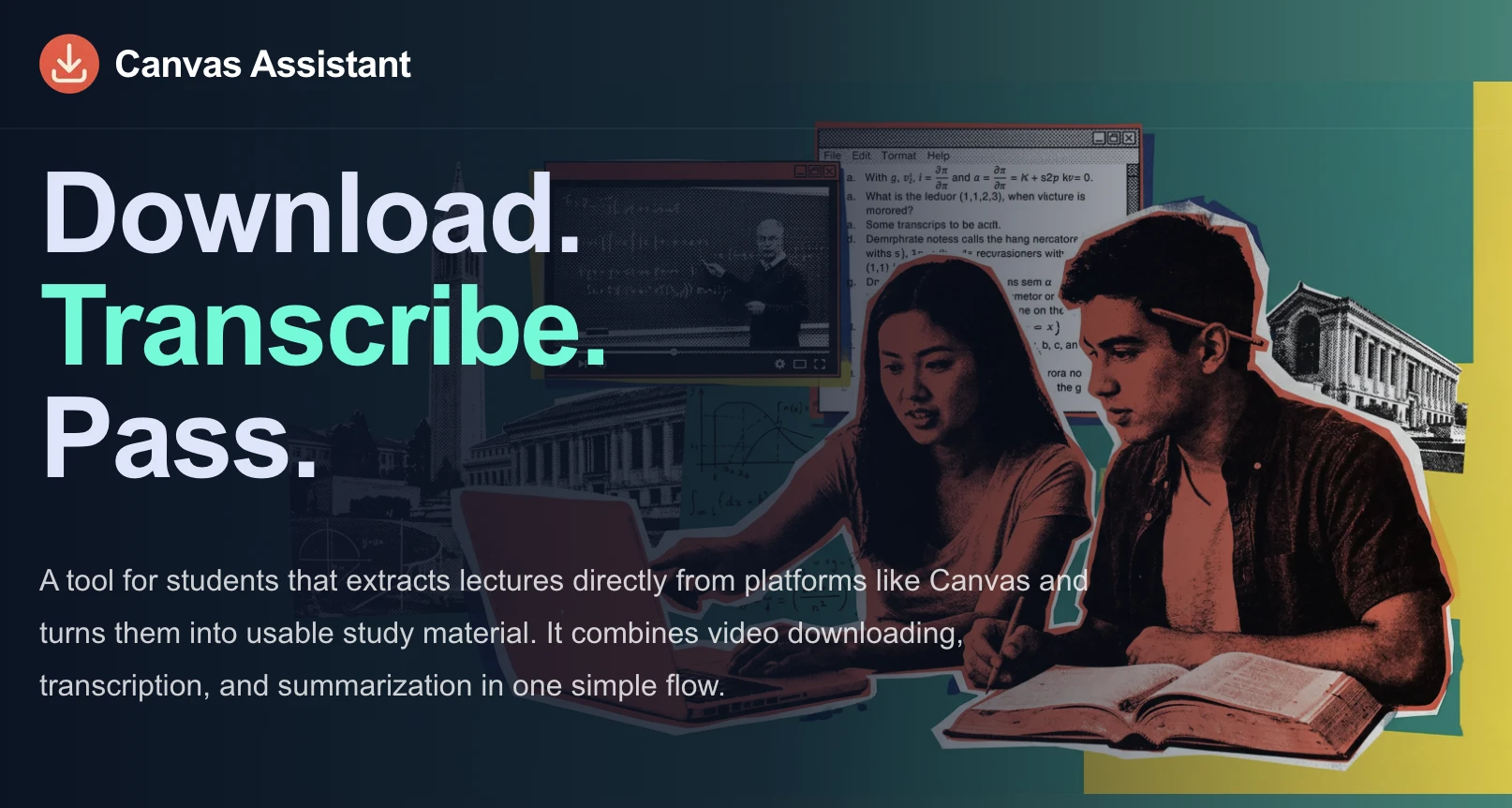
Juggling separate apps for downloading, note-taking, and revision wastes time. A combined Canvas video downloader keeps everything in one place. Canvas Assistant is built for exactly this: it detects lecture videos across Canvas, Blackboard, Moodle, and Panopto, saves them for offline use, and then helps you transcribe and summarise them — all processed locally on your device.
Turn lecture videos into searchable notes
A downloaded video is useful; a searchable transcript is better. Tools that transcribe lecture videos convert hours of speech into clean text you can scan, copy, and quote. From there you can summarize lecture videos into concise key points, generate flashcards, and map themes across a module — so revision becomes targeted rather than passive rewatching.
Important: follow your university's rules
Only download lectures you are genuinely authorised to access, and keep them for your own study. Course recordings are copyrighted material owned by your university or lecturer. Don't share, re-upload, or redistribute them, and respect any policy your institution sets. When in doubt, ask your faculty first.
Final study workflow
Put it together: download your lecture, transcribe it, summarise the key points, organise files by course, and review the summaries before each exam. That sequence turns scattered streaming recordings into a structured, offline study library — and frees your revision time for genuine understanding rather than rewatching.